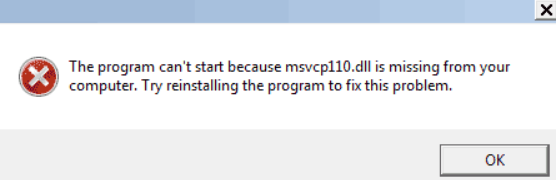
Are you seeing the frustrating message "msvcp110.dll was not found" when opening an application or even during system startup? This error often disrupts normal Windows operations, causing applications to crash, or even preventing Windows from booting properly. It’s a common DLL (Dynamic Link Library) error that can seem intimidating, but don’t worry — this comprehensive guide will help you understand and resolve the problem efficiently and safely.
Understanding the 'msvcp110.dll' File and Its Role
What is msvcp110.dll?
The msvcp110.dll file is a crucial component of Microsoft's Visual C++ Redistributable package. Specifically, it's part of the Microsoft Visual C++ 2012 Redistributable, which developers use to run applications built with Visual C++ (often games, productivity tools, or other Windows programs).
This DLL provides essential functions—such as support for C++ standard library features—that applications need to operate smoothly. When Windows or an application cannot locate or access this DLL, errors like "msvcp110.dll was not found" occur, leading to application crashes or startup failures.
How DLL files affect program operation
DLL files act as shared libraries that multiple programs can use simultaneously. Instead of having all code statically embedded within individual applications, DLLs promote efficient system operation and modular design. When an application needs a certain function, it loads the corresponding DLL at runtime. If that DLL is missing, corrupted, or incompatible, the program cannot proceed, resulting in errors. Understanding this helps clarify why resolving DLL issues is critical for maintaining system stability and application functionality.
Common Causes of the Error
Several issues can trigger the "msvcp110.dll was not found" error, including:
Missing or Deleted Files
Accidental deletion of the DLL file—perhaps during manual cleanup or third-party cleaning tools—can cause this error. If the DLL is missing, Windows cannot load the required functions for certain applications.
Corrupted DLLs
Corruption might occur due to malware, improper shutdowns, or failed updates. A corrupted msvcp110.dll leads to runtime errors because the system cannot reliably use the file.
Outdated or Faulty Software Updates
Installing outdated or incorrectly installed versions of the Visual C++ Redistributable package can cause version conflicts or missing files. Sometimes, Windows updates or application updates replace or modify DLLs, causing compatibility issues.
System File Issues
Corrupt or damaged Windows system files, including component repositories, can also result in DLL errors. Running system repairs becomes essential in such cases.
Step-by-Step Troubleshooting and Fixes
Resolving the "msvcp110.dll was not found" error requires a systematic approach. Follow these steps to restore your system's stability:
1. Reinstall the Microsoft Visual C++ Redistributable Package
Since the error is linked to this package, reinstalling it is often the most straightforward fix.
- Go to the official Microsoft Download Center.
- Download the Visual C++ Redistributable for Visual Studio 2012 (x86 and x64).
- Run the installers and follow on-screen instructions.
- Restart your computer and check if the error persists. Tip: Installing both x86 and x64 versions ensures compatibility across all application types.
2. Use Official Downloads to Replace the DLL
If reinstalling the Redistributable doesn't resolve the issue:
- Download a fresh copy of
msvcp110.dllfrom a reputable, official source like DLL-files.com or similar trusted sites. - Ensure you select the correct version matching your system architecture.
- Place the DLL in the application's directory or the
C:\Windows\System32folder for system-wide use. - Be cautious: manually replacing DLLs carries risks; always prefer official or trusted sources.
3. Run System File Checker (SFC) and DISM Tools
These built-in Windows tools can repair corrupt system files that might be causing DLL errors.
- Open Command Prompt as administrator:
- Press
Win + Xand select Command Prompt (Admin) or Windows Terminal (Admin). - Run the following commands sequentially:
sfc /scannow
- Wait for the scan to complete. It will repair or replace corrupted system files automatically. If issues persist, run:
DISM /Online /Cleanup-Image /RestoreHealth
- This restores the health of the Windows component store. After completion, rerun
sfc /scannow.
4. Manual Replacement of the DLL File
If the previous steps don't fix the issue:
- Locate and download the correct
msvcp110.dll. - Copy the DLL into the application folder experiencing the error.
- Alternatively, place it into
C:\Windows\System32(for 64-bit OS) orSysWOW64(for 32-bit Windows). Important: Always create a backup of your current system or DLL files before replacing them manually.
5. Perform System Restore if Necessary
If the error appeared after recent changes and nothing else works:
- Access System Restore:
- Search for "System Restore" in the Start menu.
- Choose a restore point created before the error appeared.
- Follow the prompts to restore your system to a stable state. This process undoes recent modifications that may have caused the DLL missing issue.
Preventive Measures and Best Practices
Prevention saves time and effort:
Keeping Windows Updated
Regularly installing Windows updates ensures your system has the latest security patches and component updates, including DLL files.
- Go to Settings > Update & Security > Windows Update.
- Click Check for updates and install available updates.
Regular System Scans
Use Windows Defender or trusted third-party antivirus software to scan for malware, which can corrupt DLL files:
- Schedule weekly scans.
- Remove detected threats promptly.
Using Trusted Sources for Downloads
Avoid downloading DLL files from unverified sites. The safest approach is to:
- Reinstall the official Visual C++ Redistributable packages.
- Use Windows Update for system components.
Maintaining System Health
- Remove unnecessary software and files regularly.
- Use built-in tools like Disk Cleanup and Defragmenter.
- Keep drivers updated from manufacturer websites.
Conclusion
The "msvcp110.dll was not found" error can be disruptive but is manageable with proper troubleshooting. Understanding the role of DLL files, identifying common causes, and following systematic solutions can resolve the problem efficiently. Remember that maintaining your system with updates, security scans, and trusted software sources is key to preventing similar issues in the future. If you're still struggling after following these steps, consider consulting a professional technician. Restoring your system's stability not only improves performance but ensures your digital experience remains smooth and worry-free. Stay proactive, keep your system updated, and don’t hesitate to seek expert help if needed!