Are you a passionate gamer eager to explore the vast world of Red Dead Redemption 2 but suddenly encounter the dreaded dinput8.dll error? You're not alone. DLL errors—particularly related to dinput8.dll—can disrupt gameplay, causing frustration and preventing access to your favorite game. In this comprehensive guide, we'll demystify what causes these errors, explain their impact, and provide clear, step-by-step solutions to fix the problem and get you back into action smoothly.
Understanding the dinput8.dll Error in RDR2
Role of dinput8.dll in Gaming
Before diving into troubleshooting, it's essential to understand what the dinput8.dll file is. This dynamic link library (DLL) is a vital component of Microsoft's DirectX graphics API, specifically related to input devices like controllers, keyboards, and mice—integral for smooth gaming experiences. The dinput8.dll file handles communication between your system and input hardware, and it’s extensively used by many Windows-based video games, including Red Dead Redemption 2.
Common Error Messages in RDR2
When dinput8.dll encounters issues, players often face error messages such as:
"Unable to find dinput8.dll""Failed to load dinput8.dll""dinput8.dll is missing or corrupt""Error loadingdinput8.dll`" when launching RDR2 These messages typically indicate that the game cannot access or load the necessary DLL file, hindering the startup or gameplay.
Impact on Gameplay
If unresolved, these errors can prevent you from launching RDR2, cause crashes during gameplay, or result in input lag or unresponsive controls. This disrupts the immersive experience and may result in data loss or corrupted saves if not addressed promptly.
Common Causes of dinput8.dll Errors
Understanding the root causes helps in choosing the most effective fix. Here are typical reasons behind dinput8.dll errors in RDR2:
Corrupted DLL Files
DLL files can become corrupted due to improper updates, malware infections, or unexpected system shutdowns. A corrupted dinput8.dll makes it unreadable or incompatible.
Version Conflicts (32-bit vs 64-bit)
Using a 32-bit version of the DLL on a 64-bit system—or vice versa—can lead to conflicts, especially if the game or system components are mismatched in their architecture.
System File Corruption
Windows system files may become corrupted over time, or due to malware or hardware issues. These system inconsistencies can affect DLL files like dinput8.dll.
Missing or Outdated DirectX Runtime
Since dinput8.dll is part of the DirectX framework, outdated or missing DirectX components often cause the error. Ensuring you have the latest DirectX version installed is crucial.
Step-by-Step Troubleshooting and Repair Methods
Addressing dinput8.dll errors requires systematic troubleshooting. Below are the most effective methods, with detailed instructions to guide you through each step.
1. Reinstall DirectX and Game Files
Why: Corrupted or missing DirectX files affect dinput8.dll. Reinstalling ensures you have the latest, clean versions.
Steps:
- Visit the official Microsoft DirectX download page: DirectX End-User Runtime Web Installer.
- Download and run the installer.
- Follow on-screen instructions to complete the installation.
- Navigate to your Steam or Rockstar launcher, and verify integrity of game files:
- For Steam: Right-click RDR2 > Properties > Local Files > Verify Integrity of Game Files.
- For Rockstar Launcher: Find options to verify or repair game files.
Result: Replaces any missing or corrupted game and DirectX files, including
dinput8.dll.
2. Run System File Checker (SFC)
Why: To detect and repair corrupted Windows system files that may affect DLL components. Steps:
- Open Command Prompt as Administrator:
- Search for "cmd" > Right-click > Run as administrator.
-
Type the command:
sfc /scannow -
Press Enter and wait for the scan to complete.
- If errors are found and fixed, restart your PC and try running RDR2 again. Result: Repairs system files that could be causing DLL errors.
3. Use DISM for System Repair
Why: To fix more advanced system issues affecting DLL files. Steps:
- Open Command Prompt as Administrator.
-
Run the following command:
DISM /Online /Cleanup-Image /RestoreHealth -
Wait for the process to complete (~10-15 minutes).
- Restart your computer and test the game. Result: Restores healthy Windows images, fixing underlying system corruption impacting DLLs.
4. Manual Replacement of dinput8.dll
Why: If the DLL file is missing or corrupted, replacing it manually can resolve the issue. Steps:
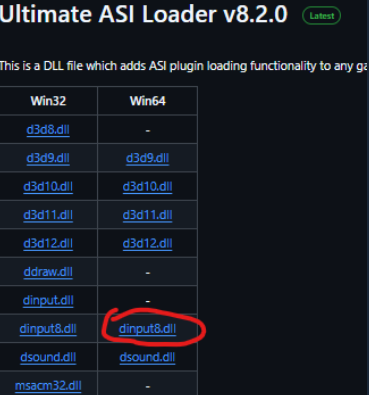
- Download a clean, trusted version of
dinput8.dllcompatible with your system architecture: - For 64-bit systems, ensure you get the 64-bit version.
- Locate your game’s directory (e.g.,
C:\Program Files\Rockstar Games\Red Dead Redemption 2\). - Back up existing
dinput8.dllif present. - Replace the existing DLL with the downloaded one.
- Restart your PC and launch RDR2. Caution: Download DLLs only from trusted sources to avoid malware.
5. Ensure Compatibility (Bit Version)
Why: Mismatched system and game architectures can cause DLL errors. Steps:
- Determine your Windows system type:
- Settings > System > About > System type (32-bit or 64-bit).
- Confirm whether your game installation matches this architecture.
- If discrepancies exist, consider reinstalling the game in the compatible version or using compatibility mode:
- Right-click game launcher > Properties > Compatibility tab > Check "Run this program in compatibility mode for" and select an appropriate Windows version.
Additional Tips to Prevent Future DLL Errors
- Regularly update Windows to ensure all system components, including DirectX, are current.
- Keep your graphics drivers and game patches up-to-date.
- Run antivirus and anti-malware scans to prevent DLL corruption from malicious software.
- Create system restore points before major updates or installations.
- Use official game stores and sources to avoid corrupt or incompatible files.
Conclusion
Encountering a dinput8.dll error in Red Dead Redemption 2 can be disruptive, but with a systematic approach, it’s usually fixable. Understanding the role of dinput8.dll, recognizing common causes such as file corruption, version conflicts, and system issues, empowers you to troubleshoot effectively. Reinstalling DirectX, repairing system files, manually replacing DLLs, and ensuring version compatibility are practical steps to resolve the problem, restore stable gameplay, and prevent future issues.
Remember: Regular system updates, backed-up game files, and cautious downloads go a long way in maintaining a smooth gaming experience. If problems persist, consider seeking professional technical support or consulting the official Rockstar support channels.
Happy gaming!