Experiencing technical issues with Steam can be frustrating, especially when it disrupts your gaming sessions. One common problem encountered by many users is the 'failed to load steamui.dll' error, which can prevent Steam from launching correctly or cause its interface to malfunction. This error not only halts your gaming experience but may also hint at underlying system problems that need urgent attention.
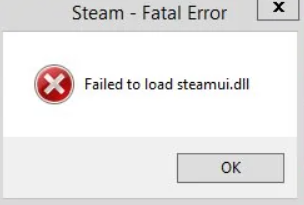
In this comprehensive guide, we'll explore what causes the steamui.dll load failure and provide clear, step-by-step solutions to fix it efficiently. Whether you're a casual gamer or a dedicated Steam user, this article will help you troubleshoot the issue, restore Steam's functionality, and prevent future DLL errors.
Understanding the 'steamui.dll' Error
What is steamui.dll?
The steamui.dll file is an essential component of the Steam client software. It contains crucial user interface elements and functions that enable the Steam platform to run smoothly on your Windows PC. When this DLL (Dynamic Link Library) file fails to load, Steam cannot display its interface properly, leading to errors and inability to launch or use the platform.
Common causes of load failure
The failed to load steamui.dll error can occur due to various reasons, including:
- Corrupted or missing DLL files: Files may become corrupted due to improper shutdowns, malware infections, or erroneous software updates.
- Virus or malware infections: Malicious programs can damage or delete DLL files, including steamui.dll.
- System file corruption: Critical Windows system files may become damaged because of improper updates, hardware issues, or malware.
- Outdated or incompatible device drivers: Outdated graphics, network, or other drivers hinder Steam's operation.
- Software conflicts: Interference from third-party antivirus or security software can block or quarantine Steam files.
- Installation issues: An incomplete or corrupted Steam installation can cause this error. Understanding these causes helps in selecting the appropriate troubleshooting method.
Initial Troubleshooting Steps
Before diving into complex repairs, try these basic troubleshooting actions to quickly identify or resolve the issue.
Restart your computer
Sometimes, a simple reboot can clear temporary glitches affecting DLL files. Restart your PC and try launching Steam again. If the issue persists, proceed to the next steps.
Verify game and Steam files integrity
Corrupted or missing files can cause DLL errors. Steam provides a built-in tool to verify file integrity: 1. Open Steam and navigate to your Library. 2. Right-click on Steam or the problematic game and select Properties. 3. Go to the Local Files tab and click Verify Integrity of Game Files. This process checks and repairs any corrupted files. If issues remain after this, consider more advanced solutions.
Manual Repair Methods
When basic troubleshooting doesn't work, manual repairs are often necessary. These steps involve reinstalling or restoring the steamui.dll file or repairing your system files.
Reinstall Steam
Reinstalling ensures that all core files, including steamui.dll, are replaced with clean versions: 1. Backup your games or note down your login credentials. 2. Uninstall Steam via Control Panel > Programs > Uninstall a Program. 3. Download the latest version of Steam from the official website: https://store.steampowered.com/about/ 4. Run the installer and follow prompts to complete installation. Check if the failed to load steamui.dll error persists after reinstalling.
Replace or restore steamui.dll from backup or official sources
If you have a backup of your steamui.dll file (perhaps from a previous stable installation), replace the current one: 1. Locate the steamui.dll file in your Steam folder (usually C:\Program Files (x86)\Steam). 2. Rename or delete the corrupted DLL. 3. Copy your clean backup DLL into this directory. 4. Restart Steam. Note: Download DLL files only from trusted sources or extract them directly from a working Steam installation to avoid malware.
Use System File Checker (SFC) and DISM commands
System files related to DLL handling may be corrupted. Windows has built-in tools to repair such issues: 1. Open Command Prompt as an administrator:
- Press Windows Key + X and select Command Prompt (Admin) or Windows Terminal (Admin).
- Run the System File Checker:
sfc /scannowWait for the scan to complete and follow instructions if errors are found. - Next, run the Deployment Image Servicing and Management (DISM) tool:
DISM /Online /Cleanup-Image /RestoreHealthThis process repairs system images that SFC cannot fix. - Restart your PC and attempt to launch Steam again.
Advanced Solutions
If manual repair methods fail, more in-depth troubleshooting can address underlying Windows issues that cause DLL load failures.
Update Windows & drivers
Keeping your operating system and drivers up-to-date ensures compatibility and stability:
- Go to Settings > Update & Security > Windows Update.
- Click Check for updates and install any available updates.
- Update device drivers, especially graphics and network adapters, via Device Manager.
Check for malware or virus infections
Malware can damage system files, including DLLs. Run a comprehensive scan: 1. Use Windows Defender or a trusted third-party antivirus software. 2. Perform a full system scan. 3. Follow the prompts to quarantine or remove threats.
Perform system restore to a working state
If the error started after recent changes: 1. Search for System Restore in the Start menu. 2. Choose Create a restore point and select System Restore. 3. Pick a restore point created before the error appeared. 4. Follow the prompts to restore Windows to that state.
Conclusion
The 'failed to load steamui.dll' error can be disruptive, but with systematic troubleshooting, most issues can be resolved efficiently. As we've explored, the causes range from corrupted files and malware to outdated software and system corruption. Regular maintenance—such as keeping Windows and drivers updated, running antivirus scans, and performing system backups—can prevent DLL errors from occurring in the first place. Should you encounter persistent issues, reinstalling Steam or repairing system files often prove effective. By following these steps, you're well-equipped to troubleshoot and fix the failed to load steamui.dll error, ensuring a smoother gaming experience. If problems persist, consider reaching out to Steam support or a professional technician for further assistance.
Ready to get back to your gaming? Follow the methods outlined here, and you'll resolve the failed to load steamui.dll error in no time!