Are you experiencing persistent error messages related to msvcr120.dll? If so, you're not alone. Many Windows users encounter DLL (Dynamic-Link Library) errors that prevent applications from launching or functioning correctly. These issues often leave users frustrated, especially if the errors are unexpected or difficult to resolve. Don’t worry—this comprehensive guide will walk you through understanding, diagnosing, and fixing msvcr120.dll errors efficiently, whether you're a casual user, a gamer, or a professional technician.
Understanding msvcr120.dll and Its Role
What is msvcr120.dll?
msvcr120.dll is a crucial component of the Microsoft Visual C++ 2013 Redistributable package. It contains essential functions and libraries that many Windows applications depend on for proper operation. Think of it as a shared resource that multiple programs tap into to perform routine tasks like memory management, input/output processing, and other core functions.
Common applications requiring this DLL
Numerous software programs, especially those built with Visual C++ 2013, rely on msvcr120.dll. Popular examples include gaming platforms, Adobe Creative Suite, CAD tools, and even some web browsers. The DLL’s presence is vital when launching these applications—if it's missing or corrupted, you'll likely encounter startup errors.
How DLL errors affect system performance
When msvcr120.dll is corrupted, missing, or incompatible, it can cause various issues:
- Application crashes on start
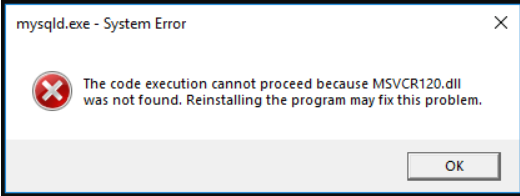
- Error messages like “The program can't start because msvcr120.dll is missing”
- Runtime errors indicating the DLL wasn’t found or failed to load
- General system instability or reduced performance Understanding the DLL’s role emphasizes why resolving related errors is critical for maintaining smooth system operation.
Common Causes of msvcr120.dll Errors
Missing or Not Found errors
One of the most frequent reasons for msvcr120.dll errors is that the file simply isn’t present in the system directory or has been accidentally deleted. This can happen during improper uninstallation, software conflicts, or partial installation failures.
Corruption due to malware or improper updates
Malware infections can corrupt DLL files, making them unusable and causing errors. Similarly, faulty Windows updates or automated patches may overwrite or damage msvcr120.dll, especially if they’re interrupted prematurely.
Dependency and version conflicts
Incompatibility issues arise when multiple applications require different versions of Visual C++ redistributables. Installing a conflicting version can lead to DLL mismatches or dependencies not being satisfied, triggering errors.
How to Download and Replace msvcr120.dll Manually
If you're facing msvcr120.dll errors, manually downloading and replacing the DLL is an effective fix—provided you do it carefully and from trusted sources.
Using official runtime download links
The safest way to get msvcr120.dll is through the official Microsoft Visual C++ Redistributable packages. Here’s how: 1. Visit the Microsoft Download Center. 2. Download the appropriate version for your system—most likely Microsoft Visual C++ 2013 Redistributable (x86 or x64). 3. Run the installer and follow on-screen instructions to install or repair existing components. Note: Avoid downloading DLL files from third-party sites, as they may be outdated or infected.
Manual DLL replacement process
If you prefer to replace msvcr120.dll directly: 1. Download the DLL from a reputable source (preferably through a trusted Microsoft redistributable). 2. Navigate to your system directory:
- C:\Windows\System32 for 64-bit Windows.
- C:\Windows\SysWOW64 for 32-bit DLLs on 64-bit systems.
-
Backup the existing DLL if present:
-
Rename it to something like
msvcr120_backup.dll. - Copy the new DLL file into this directory.
Registering DLLs with RegSvr32
After placement, you may need to register the DLL:
regsvr32 msvcr120.dll
- Open Command Prompt as Administrator.
- Enter the above command and press Enter.
- You should see a success message confirming registration. This process ensures the system correctly recognizes and utilizes the DLL.
Troubleshooting and Fixing Common DLL Errors
Even after replacing msvcr120.dll, errors can persist. Here are proven methods to troubleshoot:
Running System File Checker (SFC)
The SFC tool scans protected system files and repairs corrupted or missing ones:
sfc /scannow
Run this in an elevated Command Prompt—this can fix underlying system issues causing DLL errors.
Using DISM for recovery
The Deployment Image Servicing and Management tool can repair the Windows image:
DISM /Online /Cleanup-Image /RestoreHealth
Follow this by rerunning sfc /scannow to ensure comprehensive repairs.
System restore and safe mode troubleshooting
- Use System Restore to revert Windows to a point before the errors appeared.
- Boot into Safe Mode to disable conflicting software and then attempt DLL fixes.
Preventive Tips and Best Practices
To avoid future msvcr120.dll errors, adopting good habits is essential:
Keeping Windows and applications updated
Regular updates patch vulnerabilities and improve compatibility. Enable automatic updates for Windows and keep your software current.
Security practices to avoid DLL infections
Maintain a reputable antivirus or anti-malware program, perform regular scans, and avoid opening unknown attachments or downloading files from untrusted sources.
Regular system maintenance
Clean your registry, delete unnecessary files, and perform periodic disk checks to optimize system health and reduce DLL-related issues.
Conclusion
Dealing with msvcr120.dll errors can be frustrating, but with the right approach, they are manageable. Remember to prioritize downloading DLLs from official sources or through the latest Microsoft Visual C++ redistributables to ensure safety and compatibility. Manually replacing DLL files can be effective if done carefully, alongside tools like System File Checker and DISM to repair deep system issues. Maintaining your Windows system regularly—through updates, security practices, and proper software management—is key to preventing these errors from recurring. If you're ever in doubt, seeking professional help or using trusted troubleshooting tools can save time and safeguard your system. By following these steps outlined in this guide, you'll be well-equipped to fix msvcr120.dll errors quickly and securely, restoring smooth operation to your applications and game experiences.
Stay proactive, and don’t let DLL errors hold you back. Keep your system healthy and up to date!
Keywords: msvcr120.dll download, fix msvcr120.dll errors, DLL missing, Windows DLL fix, Visual C++ Redistributable