Introduction
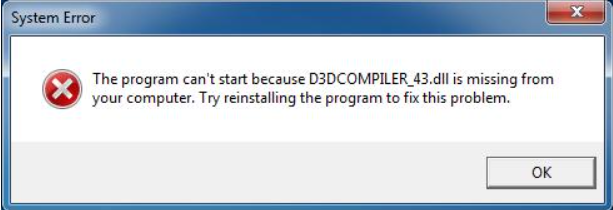
Encountering the error message "The code execution cannot proceed because d3dcompiler_43.dll was not found" can be frustrating, especially when it disrupts your gaming experience, hampers software functionality, or prevents system startup. This DLL (Dynamic Link Library) file is a crucial component of Windows' graphics rendering system, specifically related to DirectX. Its absence often leads to crashes, errors, and degraded performance. Fixing this error is vital for maintaining system stability, ensuring smooth operation of graphics-intensive applications, and avoiding future issues. This comprehensive guide will explore the causes behind the missing DLL file and provide detailed, step-by-step solutions to restore your system’s health and functionality.
Understanding the d3dcompiler_43.dll File
Role of d3dcompiler_43.dll in Windows
DLL files are shared libraries that contain code and data used by multiple programs. The d3dcompiler_43.dll is a vital part of DirectX, a set of APIs designed to handle multimedia tasks, particularly game programming and video rendering on Windows.
Specifically, d3dcompiler_43.dll provides the necessary functions to compile shaders used by graphics cards, enabling high-quality graphics rendering in games and visual applications. When this DLL is missing or corrupted, applications relying on DirectX cannot function properly, resulting in errors like the one under discussion.
Common Scenarios Leading to Missing or Corrupted DLL Files
- System file corruption due to improper shutdowns or malware infections.
- Incomplete or failed Windows updates, which may leave system files in an inconsistent state.
- Accidental deletion of DLL files during software uninstallation or manual cleanup.
- Malware or virus infections that damage or delete essential system files.
- Driver conflicts or outdated graphics drivers that interfere with DirectX components.
Common Causes of the Error
System File Corruption and Malware
Corrupted system files can prevent Windows from accessing the necessary DLLs, resulting in errors. Malware infections may also delete or corrupt DLL files to evade detection, exacerbating the problem.
Driver Conflicts and Outdated Graphics Drivers
Outdated or incompatible graphics drivers can cause conflicts with DirectX libraries, including d3dcompiler_43.dll. Driver issues are a frequent cause of DLL errors, especially after Windows updates or hardware changes.
Failed Windows Updates or Runtime Installations
Incomplete or failed updates—particularly those related to Windows or Visual C++ redistributables—can leave essential DLL files missing. Sometimes, runtime libraries like DirectX are not installed correctly, leading to errors.
Effective Solutions to Fix the Error
Step 1: Reinstalling DirectX Runtime
Since d3dcompiler_43.dll is part of DirectX, reinstalling or updating DirectX is often the most straightforward fix.
How to Reinstall DirectX:
- Visit the official Microsoft DirectX download page.
- Download the DirectX End-User Runtime Web Installer.
- Double-click the downloaded file and follow on-screen instructions.
- Restart your computer after installation to apply changes. This process ensures all necessary DirectX components, including d3dcompiler_43.dll, are properly installed.
Step 2: Using System File Checker (SFC) and DISM
System corruption can be repaired using built-in Windows tools:
How to run SFC:
-
Open Command Prompt as Administrator:
-
Press Win + X and select Command Prompt (Admin) or Windows Terminal (Admin).
- Type the command:
bash sfc /scannow - Press Enter and wait for the scan to complete.
- Follow any on-screen instructions to fix corrupted files.
How to run DISM:
If SFC reports issues it cannot fix, run DISM:
1. In the same administrator Command Prompt, type:
bash
   DISM /Online /Cleanup-Image /RestoreHealth
2. Press Enter and wait for the process to complete.
3. Restart your PC and rerun sfc /scannow to verify system integrity.
Step 3: Updating or Reinstalling Graphics Drivers
Outdated drivers often cause DLL errors. To fix this:
How to update graphics drivers:
-
Device Manager method:
-
Press Win + R, type
devmgmt.msc, and press Enter. - Expand Display adapters.
- Right-click your graphics card and select Update driver.
- Choose Search automatically for updated driver software.
-
Official manufacturer website:
-
Visit NVIDIA, AMD, or Intel's website.
- Download the latest driver compatible with your hardware.
- Install the driver and restart your computer.
Reinstalling drivers:
If updating doesn’t help, uninstall and reinstall: 1. In Device Manager, right-click your graphics card and select Uninstall device. 2. Confirm and restart your PC. 3. Install the latest driver from the manufacturer’s website.
Step 4: Restoring System Files via System Restore
If the error started recently, restoring your system to an earlier point may resolve the issue: 1. Search for Create a restore point in the Start menu and open it. 2. Click on System Restore. 3. Follow the wizard to select a restore point prior to the error occurrence. 4. Complete the process and restart your system.
Step 5: Using DLL Repair Tools and Official Downloads
If the previous methods fail, consider using reputable DLL repair tools or manually downloading d3dcompiler_43.dll:
- Download the DLL from trusted sources like DLL-files.com.
- Place the DLL in the application's directory or the
C:\Windows\System32folder. - Register the DLL by opening Command Prompt as Administrator and typing:
bash
  regsvr32 d3dcompiler_43.dll
Note: Be cautious when downloading DLLs from third-party sites; prefer official or trusted sources to avoid malware.
Preventive Measures and Best Practices
Keep Windows and Drivers Updated
Regularly install Windows updates and driver patches to ensure system components and DirectX libraries stay current, reducing the likelihood of missing DLL errors.
Regular Malware Scans
Use reliable antivirus software to scan your system periodically, preventing malware infections that could damage system files like d3dcompiler_43.dll.
Proper Software Installation and Updates
Ensure software, especially games and graphics-intensive applications, are installed correctly and updated regularly to prevent conflicts or missing dependencies.
Conclusion
Dealing with the "The code execution cannot proceed because d3dcompiler_43.dll was not found" error can seem daunting, but with systematic troubleshooting, you can resolve it effectively. Reinstalling DirectX, repairing system files, updating drivers, and restoring your system are proven methods to restore stability and performance. Maintaining good system hygiene—through updates, security scans, and careful software management—prevents future DLL errors. If you follow these steps diligently, you'll minimize downtime and enjoy smooth, error-free operation of your Windows system and applications. Take action today to fix the missing DLL error and keep your system running flawlessly!
Q: Why does this error occur?
A: This error is usually caused by missing or corrupted d3dcompiler_43.dll files, which are part of DirectX. It can result from system file corruption, malware infections, outdated drivers, or incomplete Windows updates.
Q: What should I do if updating DirectX doesn't fix the problem?
A: If updating DirectX doesn't resolve the issue, try running System File Checker (SFC) and DISM tools to repair corrupted system files, or reinstall your graphics drivers. Restoring your system to an earlier point can also help.
Q: Is it safe to download DLL files from third-party websites?
A: Downloading DLL files from unofficial sources can pose security risks, including malware infections. Always prefer official Microsoft downloads or trusted sites like DLL-files.com, and ensure you scan downloads with antivirus software before use.
Q: Can I fix this error without reinstalling Windows?
A: Yes, most cases can be resolved without reinstalling Windows by reinstalling DirectX, updating drivers, repairing system files, or restoring your system to a previous restore point.
By following this comprehensive guide, you'll be well-equipped to troubleshoot and fix the "the code execution cannot proceed because d3dcompiler_43.dll was not found" error effectively.