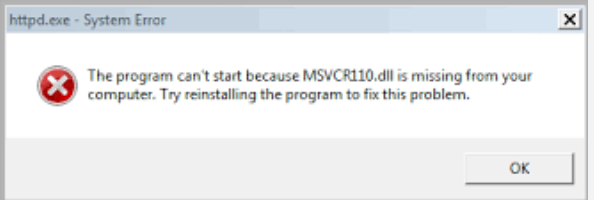
Introduction Are you experiencing frustrating error messages on your Windows computer, such as “msVCP110.dll is missing” or “failed to load msVCP110.dll”? These types of DLL (Dynamic Link Library) errors can disrupt your system’s stability and prevent applications from running smoothly. Although they may seem daunting, most msVCP110.dll issues are fixable with some troubleshooting and manual repair techniques. Addressing these errors promptly is important not only for restoring application functionality but also for maintaining overall system health. This guide provides a comprehensive, step-by-step approach to understanding, diagnosing, and resolving msVCP110.dll errors, helping you get back to a smooth, error-free experience.
Understanding msVCP110.dll and Its Role in Windows
What is a DLL file?
A DLL (Dynamic Link Library) file contains code, data, and resources shared among multiple programs. Instead of including the same code in every application, DLLs promote code reuse and modularity, reducing file size and improving application performance.
Role of msVCP110.dll in Visual C++ Runtime
The msVCP110.dll is part of Microsoft Visual C++ Redistributable packages, specifically related to Visual C++ 2012 runtime components. It provides essential functions used by various applications built with Visual C++. When an application depends on this DLL, the presence and integrity of msVCP110.dll are critical for it to run properly.
Common applications affected
Software such as video editors, games, office applications, and other programs developed using Visual C++ may rely on msVCP110.dll. If this DLL is missing or corrupted, users often encounter startup failures or error messages preventing normal usage.
Common Causes of msVCP110.dll Errors
Understanding why these errors occur can help in choosing the most effective solution. Typical causes include:
File deletion or corruption
Unintended deletion, accidental removal during system cleaning, or corruption caused by malware can result in missing or damaged DLL files.
System file issues
Corrupted system files or registry entries related to the Visual C++ runtime can cause msVCP110.dll errors.
Incorrect runtime version
Using incompatible or outdated versions of the Visual C++ Redistributable can lead to version conflicts, making the DLL incompatible with certain applications.
Malware or virus infections
Malicious software can corrupt, delete, or alter DLL files, including msVCP110.dll, leading to application errors and system instability.
Symptoms and Error Messages
Recognizing the signs of msVCP110.dll problems can speed up diagnosis:
Error message examples
- “The program can’t start because msVCP110.dll is missing from your computer.”
- “msVCP110.dll not found.”
- “Failed to load msVCP110.dll.”
- “This application failed to start because msVCP110.dll was not found.”
How these errors affect system or application performance
These errors often prevent programs from launching, cause crashes, or lead to system instability. You might also see other related errors, such as “application error” prompts or warning messages during startup.
Step-by-Step Manual Repair Methods
Before reinstalling or downloading files, try these manual methods to fix msVCP110.dll errors.
Reinstall Visual C++ Redistributable
- Download the latest Visual C++ 2012 Redistributable from the official Microsoft website.
- Choose the appropriate architecture (x86 or x64) based on your system.
- Run the installer and follow on-screen instructions.
- Restart your computer and check if the error persists.
Download and replace msVCP110.dll manually
- Visit reputable DLL download sites (be cautious—prefer official sources) such as the Microsoft official download page.
- Download the version of msVCP110.dll matching your system and application requirements.
- Copy the DLL to the folder where the application expects it—usually in
C:\Windows\System32or the application’s installation directory. - If prompted, confirm replacement if the DLL already exists.
Registering DLL with RegSvr32
Registering the DLL ensures Windows recognizes and properly loads it:
1. Open Command Prompt as an administrator.
2. Type:
regsvr32 msVCP110.dll
3. Hit Enter and wait for a success message.
4. Restart your computer and test the affected application.
Running System File Checker (SFC) and Deployment Image Servicing and Management (DISM)
These tools scan and repair corrupted Windows system files:
- Open Command Prompt as administrator.
-
Run SFC:
sfc /scannowWait for the scan to complete, then restart your PC. -
Run DISM:
DISM /Online /Cleanup-Image /RestoreHealthAfter completion, reboot and check if the error persists.
Official Runtime Download and Reinstallation
Downloading the Visual C++ Redistributable
To ensure full compatibility and security, always download runtime components directly from Microsoft: 1. Visit the official Microsoft Visual C++ Redistributable downloads. 2. Select the correct version—Visual C++ 2012 Redistributable (which contains msVCP110.dll). 3. Download and install the redistributable package. 4. Restart your system to apply changes.
Verifying the DLL installation
After installation, you can verify the presence of msVCP110.dll in C:\Windows\System32. Ensure it is properly registered and recognized by applications.
Conclusion
Dealing with msVCP110.dll missing or not found errors can be straightforward when approached methodically. The key steps include understanding the role of the DLL, identifying causes such as corruption or version mismatch, and applying solutions such as reinstalling the Visual C++ Redistributable, manually replacing or registering the DLL, and repairing system files with built-in tools like SFC and DISM. Maintaining updated system and runtime files is essential for preventing DLL errors and ensuring optimal performance. If these troubleshooting methods do not resolve the issue, consider consulting a professional technician to diagnose potential deeper system problems. By following this comprehensive repair guide, you can significantly reduce downtime caused by msVCP110.dll errors and keep your Windows system running smoothly.
Stay proactive! Regularly update your Windows OS and installed software, run periodic malware scans, and back up your system to prevent future DLL-related troubles.
Keywords: msvcp110.dll, DLL error, Visual C++ Redistributable, fix DLL missing, system repair, Windows troubleshooting