Introduction
In the world of Windows operating systems, system dynamic-link libraries (DLLs) are essential building blocks that facilitate core functionalities and ensure smooth operation. Among these, shell32.dll holds a vital role, providing crucial system functions related to the Windows Shell, files, folders, shortcuts, and user interface elements. When issues related to shell32.dll occur—such as error messages, system crashes, or application failures—they can significantly disrupt your computer’s stability and workflow.
Promptly diagnosing and fixing shell32.dll errors is essential to prevent system downtime, data loss, or security vulnerabilities. This comprehensive guide aims to demystify what shell32.dll is, highlight common related errors, and offer detailed troubleshooting and repair strategies. Whether you're a Windows user facing persistent errors or an IT professional seeking reliable solutions, this article provides practical insights to restore your system's health efficiently.
What Is shell32.dll and Why Does It Matter?
Role in Windows OS
Shell32.dll is a core component of the Windows operating system, acting as a bridge between the Windows shell (the graphical interface users interact with) and the lower-level system processes. It manages the user experience related to file management, desktop customization, navigation, and context menus. Its responsibilities include handling file operations, managing the Recycle Bin, implementing visual elements like icons and shortcuts, and facilitating user interactions with the Windows Explorer.
Because shell32.dll is deeply integrated with critical system functions, any corruption or missing component can directly impact how Windows operates and how users interact with their computers.
Common Functions and Dependencies
Shell32.dll is tightly coupled with numerous system components and applications. Several features depend on it, including:
- Windows Explorer navigation and user interface
- File operations like copying, moving, or deleting
- Desktop customization through icons and shortcuts
- Context menu actions
- Handling of special folders, such as Desktop, My Documents, and downloads
- Integration with third-party applications that extend shell functionalities
Due to these dependencies, issues within
shell32.dllcan manifest in various errors, affecting system stability and usability.
Common Errors Associated with shell32.dll
Error Messages Overview
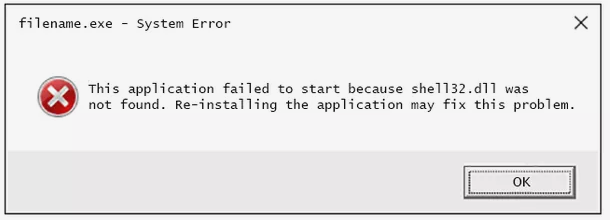
Errors linked to shell32.dll can range from missing or corrupt files to failed to load or access violations. Common messages include:
- "The program can't start because shell32.dll is missing from your computer."
- "Shell32.dll is missing or corrupted."
- "Failed to load shell32.dll."
- "Error 0x80073712: The component store has been corrupted."
- Application crashes or freezes when opening specific folders or files. These errors often occur during system startup, application launch, or when performing file operations.
Symptom Analysis
Typical symptoms indicating shell32.dll issues include:
- Frequent system crashes or blue screens (BSOD)
- Missing desktop icons or unresponsive context menus
- Failure of Windows Explorer to load properly
- Error prompts during startup or shutdown
- Inability to open or manipulate files and folders correctly
Understanding these symptoms can guide users toward targeted troubleshooting steps, focusing on
shell32.dllas the root cause.
Troubleshooting shell32.dll Errors
Identifying Specific Error Types
Before proceeding with fixes, determine the specific error message or symptom. Is the DLL missing, corrupted, or unable to load? Pinpointing the exact issue helps streamline the troubleshooting process.
Using Built-in Windows Tools
Windows offers several utilities to diagnose and repair DLL-related problems:
- Safe Mode Boot: Restart your PC in Safe Mode to prevent third-party software conflicts, enabling easier troubleshooting.
- System File Checker (SFC): This tool scans and repairs corrupted system files, including those related to
shell32.dll. - Deployment Image Servicing and Management (DISM): Use DISM to repair the Windows image, especially when SFC reports errors it cannot fix.
- Event Viewer: Check logs for detailed information about DLL errors, which can help identify the process or application causing issues. Step-by-step Example: Running SFC and DISM
- Open Command Prompt as administrator.
- Run the System File Checker:
sfc /scannow
- After completion, run DISM to repair the Windows image:
DISM /Online /Cleanup-Image /RestoreHealth
- Restart your computer and check if errors persist.
Manual Repair Methods for shell32.dll
Manual Replacement
If the shell32.dll file is missing or corrupted, replacing it manually can resolve the issue:
1. Obtain a Trusted Copy: Extract a clean shell32.dll from a working Windows system matching your version and architecture.
2. Boot into Safe Mode: To prevent conflicts.
3. Backup Existing DLL: Copy the current shell32.dll to your desktop or an external drive.
4. Replace File: Copy the fresh shell32.dll into the C:\Windows\System32 directory, replacing the old one.
5. Register DLL: Open Command Prompt as administrator and run:
regsvr32 shell32.dll
- Restart your computer. Note: Be cautious when replacing system DLLs manually. Always use files from trusted sources.
Using RegSvr32
While regsvr32 is more common for COM components, it can help in re-registering DLLs:
regsvr32 /u shell32.dll  # Unregister
regsvr32 shell32.dll    # Register again
Ensure the DLL file name and path are correct.
Reinstalling System Files
If manual replacement fails or risks damaging your system, a safer alternative is to repair Windows:
- Use the Media Creation Tool to create a Windows installation media.
- Boot from the media and select "Repair your computer."
- Choose the "Troubleshoot" option and then "Reset this PC" or "Startup Repair."
This process reinstalls Windows system files, including
shell32.dll, without affecting personal data.
Prevention and Best Practices
Regular maintenance can prevent DLL and system file issues:
Regular Update Protocols
- Keep Windows up to date via Windows Update to ensure system components, including
shell32.dll, are current and secure. - Update drivers and software applications regularly to avoid compatibility conflicts.
System Backup Strategies
- Create system restore points before making significant changes.
- Use backup tools to save system images periodically, enabling quick recovery from errors.
Virus and Malware Scans
- Run frequent antivirus scans to detect and eliminate malicious software that could corrupt system DLLs.
- Use reputable security software and keep it updated.
Conclusion
Understanding shell32.dll's critical role in Windows and recognizing the common errors associated with it are essential for maintaining system stability. Whether the issue manifests as missing DLLs, corrupted files, or application failures, employing targeted troubleshooting methods—like running system scans, manual replacements, or system repairs—can restore normal functionality effectively.
Regular maintenance, including updates, backups, and security measures, helps prevent future shell32.dll errors, saving time and effort. Should you encounter persistent problems despite these efforts, consulting professional support or performing a clean installation of Windows may be necessary.
By following these expert tips and solutions, you can ensure your Windows system remains robust, secure, and operating smoothly.
Stay proactive in maintaining your system, and don't hesitate to seek professional help when needed. Your computer's health depends on it!