Running into the “failed to load custom.dll from the list error code 126” can be a frustrating experience for Windows users, IT professionals, and developers alike. This error often signals issues with dynamic-link library (DLL) files that are essential for the operation of various applications and system processes. If left unresolved, it can compromise system stability or prevent critical software from functioning correctly.
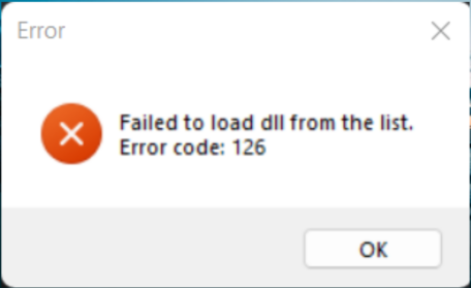
In this comprehensive troubleshooting guide, we’ll explore the causes behind error code 126 in DLL loading, dive into practical solutions, and provide expert tips to prevent similar issues in the future. Whether you’re dealing with a missing, corrupted, or conflicting custom.dll, this step-by-step advice will help you restore smooth operation and security.
Understanding Error Code 126 in DLL Loading
Before jumping into fixes, it’s crucial to understand what error code 126 signifies and why it occurs. Error code 126 is a Windows system error that generally appears when the OS cannot locate or load a required DLL file, such as custom.dll, due to various reasons.
What does error code 126 mean?
In Windows, error code 126 corresponds to ERROR_MOD_NOT_FOUND, indicating that the specified module (DLL) could not be found. This could mean the DLL file is missing, misplaced, or incompatible with the current system or application.
Common scenarios leading to this error
- An application attempts to load
custom.dllfor specific functionalities. - The DLL file has been deleted, moved, or renamed accidentally.
- The DLL is corrupted or outdated.
- Dependency files or other supporting DLLs are missing or incompatible.
- System updates or driver incompatibility issues interfere with DLL loading. Understanding these scenarios helps pinpoint the root cause, guiding effective troubleshooting.
Common Causes of 'Failed to Load custom.dll' Error
This error usually results from underlying problems involving DLL files or system configurations. Below are the most prevalent causes:
Missing or corrupt DLL files
Missing DLLs often occur after software uninstallation or incomplete installations. Corrupt DLLs may arise from disk errors, improper shutdowns, or malware infections, impairing their proper loading.
Dependency conflicts and version mismatches
Many DLLs depend on other files or specific runtime environments. If a dependency is outdated or mismatched, Windows cannot load the DLL correctly, triggering error 126.
System file corruption or registry issues
Corrupted system files or registry entries related to the DLL can cause load failures. Malware, improper updates, or hardware issues may corrupt these components over time.
Outdated or incompatible drivers
Graphics, audio, or hardware drivers that are outdated or incompatible with current Windows versions might disrupt DLL loading, especially if the DLL is associated with driver components.
Security software interference
Security tools such as antivirus or firewall programs may mistakenly quarantine or block DLL files, preventing them from loading correctly.
Step-by-step Troubleshooting Methods
To resolve the 'failed to load custom.dll from the list error code 126,' follow these structured steps:
1. Verify custom.dll existence and integrity
- Check physically: Navigate to the application's directory or system folders (like
C:\Windows\System32) to verify ifcustom.dllexists. - File integrity: Right-click the DLL, select Properties, and check for any corruption or security issues.
- Re-download: If the DLL is missing or corrupted, obtain a fresh copy from the application installer or a trusted source.
2. Reinstall the affected application or DLL
- Uninstall the software or component that uses
custom.dll. - Restart your system.
- Download and install the latest version from an official source.
- During installation, ensure no errors occur, and all components are correctly placed.
3. Use System File Checker (SFC) and Deployment Image Servicing and Management (DISM)
System tools like SFC and DISM can repair corrupted system files:
## Run Command Prompt as Administrator

sfc /scannow
- Wait for the scan to complete and follow prompts.
- If SFC reports issues it couldn’t fix, run:
DISM /Online /Cleanup-Image /RestoreHealth
This process repairs the Windows image, potentially resolving DLL load failures.
4. Update or reinstall drivers
- Visit your hardware manufacturer's website.
- Download the latest drivers matching your system specifications.
- Install and reboot.
- Confirm if the error persists.
5. Check for dependency issues
- Use tools like Dependency Walker to analyze
custom.dll. - Verify if all dependent DLLs are present and compatible.
- Replace or update any missing or outdated dependencies.
Advanced Fixes and Preventative Measures
If basic troubleshooting doesn’t resolve the error, consider more advanced solutions:
Manual replacement of DLL files
- Download a clean, verified version of
custom.dll. - Replace the existing file in its directory.
- Register the DLL using
regsvr32:
regsvr32 C:\Path\To\custom.dll
- Confirm successful registration.
Registry corrections
- Use Registry Editor carefully:
regedit. - Locate entries related to
custom.dllor the application inHKEY_LOCAL_MACHINE\SoftwareorHKEY_CURRENT_USER. - Back up the registry before making adjustments.
- Correct any incorrect paths or entries related to the DLL.
Ensuring system and driver updates
- Regularly run Windows Update to keep your OS and drivers current.
- Enable automatic updates to prevent incompatibility issues.
Security software considerations
- Temporarily disable antivirus programs and check if
custom.dllloads properly. - Add exceptions for trusted DLL files.
- Keep security software updated to avoid false positives.
Conclusion
Encountering the 'failed to load custom.dll from the list error code 126' can seem daunting, but systematic troubleshooting makes resolving this issue manageable. By understanding the underlying causes—ranging from missing or corrupted DLL files to dependency conflicts—you can apply targeted solutions like verifying DLL integrity, repairing system files, updating drivers, and manually registering DLLs. Regular system maintenance, timely updates, and cautious handling of DLL files can significantly reduce the likelihood of such errors recurring. Remember, always use trusted sources for DLL files and tools to safeguard your system’s stability and security. If you follow these comprehensive steps, you’ll be well-equipped to fix error code 126 and ensure your applications and system run smoothly again. Need additional help? Stay vigilant with your system updates and consider consulting professional IT support for persistent or complex DLL issues.
Tags: DLL error, Error Code 126, DLL troubleshooting, Windows errors, custom.dll, system repair, dependency issues