Are you encountering d3d11.dll errors while gaming or using graphics-intensive applications on Windows? These errors can be frustrating, causing crashes, poor performance, or even system instability. Fortunately, many of these issues are fixable with the right troubleshooting steps. This guide provides a comprehensive look into what causes d3d11.dll errors, why they occur, and how to resolve them effectively—whether you’re a gamer, IT professional, or casual user seeking quick solutions.
Understanding d3d11.dll and Its Importance
What is d3d11.dll?
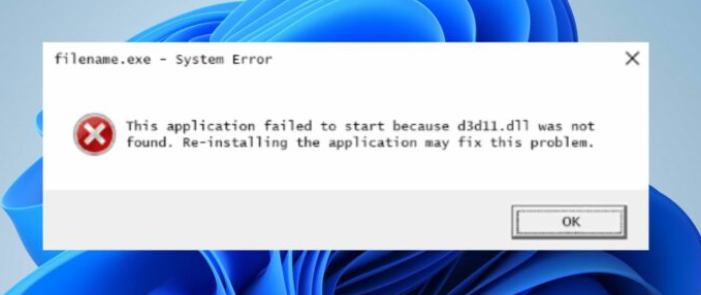
The d3d11.dll is a Dynamic Link Library (DLL) file integral to Windows’ implementation of DirectX 11, a collection of APIs critical for multimedia and gaming applications. Essentially, d3d11.dll acts like a bridge between your hardware (graphics card) and software, enabling high-performance graphics rendering required by modern games and apps.
Role in Graphics Rendering
This DLL handles complex tasks such as 3D rendering, shading, and graphical effects at a hardware-accelerated level, ensuring smooth visuals and responsive gameplay. When working correctly, d3d11.dll supports advanced visual features like tessellation, compute shaders, and multi-threading, contributing to immersive gaming experiences.
Common Scenarios Leading to Errors
Problems with d3d11.dll arise in various scenarios, including:
- Game crashes or fails to start with a DLL error message.
- Application errors during rendering-intensive activities.
- System pop-ups indicating missing or corrupt DLL files.
- Blue screen errors linked to graphics or driver issues. Understanding these contexts underscores the importance of the DLL’s integrity for your system’s multimedia performance.
Common Causes of d3d11.dll Errors
Several factors can trigger d3d11.dll errors, ranging from simple file issues to more complex system malfunctions.
Missing or Not Found
Sometimes, d3d11.dll might be accidentally deleted, moved, or become corrupted due to malware, disk errors, or incomplete software updates. When the system cannot locate the DLL, it throws an error.
Corrupted Files
Corruption can result from abrupt system shutdowns, malware infections, or failed updates, causing the DLL to malfunction, which directly impacts graphical functions.
Failed to Load Errors
If the DLL fails to load during an application’s startup, it might be because of incompatible or outdated drivers, or conflicts with other files or software.
Dependency Issues
d3d11.dll relies on other components, such as specific versions of DirectX or Visual C++ Redistributables. Missing or outdated dependencies can result in errors about failed loads or dependencies.
Step-by-Step Manual Fixes for d3d11.dll Errors
When facing a DLL error, manual fixes can often resolve the issue without the need for complex tools.
Manual Replacement of d3d11.dll
- Download a Clean DLL File: Obtain the correct version of d3d11.dll from a reputable source or directly from your system backups.
- Navigate to System Directory: Typically, this is located at
C:\Windows\System32. - Back Up the Existing DLL: Before replacing, rename the current d3d11.dll to
d3d11_backup.dllto keep a restore point. - Copy and Paste the New DLL: Place the downloaded DLL into the System32 folder.
- Register the DLL (if necessary): Open Command Prompt as administrator and enter:
bash
   regsvr32 d3d11.dll
Using Registry Editor
Incorrect or corrupted registry entries for DLL registration can cause issues. To repair:
- Press
Win + R, typeregedit, and press Enter. - Navigate to
HKEY_LOCAL_MACHINE\SOFTWARE\Microsoft\Windows\CurrentVersion\SharedDLLs. - Look for entries related to d3d11.dll and remove any suspicious or duplicate entries.
- Be cautious—editing the registry can cause system issues if done incorrectly.
Running SFC and DISM Tools
System File Checker (SFC) and Deployment Image Servicing and Management (DISM) are built-in tools to repair corrupted system files:
- Open Command Prompt as administrator.
- Run these commands sequentially:
bash sfc /scannowandbash DISM /Online /Cleanup-Image /RestoreHealthThese tools scan and restore corrupted files, potentially fixing d3d11.dll errors related to system issues.
Reinstalling DirectX and Visual C++ Redistributables
- Download the latest DirectX End-User Runtime Web Installer from Microsoft’s official site.
- Install or repair your Visual C++ Redistributables—the packages that provide runtime components for applications. This approach ensures all dependencies for d3d11.dll are correctly installed and up to date.
Using Official Resources and Troubleshooting Tools
Official Runtime Download Links
Always download DLL files or updates from official sources:
- Microsoft DirectX Downloads
- Windows Update offers the latest DirectX support as part of system updates.
Running Windows System Restore
If recent changes caused the error, perform a System Restore to revert your system to a previous stable state:
- Search for “System Restore” and follow the prompts.
- Choose a restore point created before the error appeared.
Driver Updates and System Scans
Outdated or incompatible graphics drivers are a common cause of DLL errors:
- Use Device Manager to update your graphics drivers.
- Consider using tools like Display Driver Uninstaller (DDU) for clean driver removal and reinstallation.
- Run antivirus scans to detect malware that might corrupt system files.
Preventative Measures and Best Practices
Prevention is better than cure. Implement these best practices to minimize future d3d11.dll issues:
Regular Backups
Create regular system backups via Windows System Image or restore points to facilitate easy recovery in case of errors.
Keeping Drivers Updated
- Check for driver updates periodically via manufacturer websites or Windows Update.
- Enable automatic updates for critical system components.
Avoiding Untrusted Software
- Download software from reputable sources.
- Use strong security measures such as firewalls and antivirus programs to prevent malware infections.
Conclusion
Dealing with d3d11.dll errors can seem daunting initially, but with the right approach, most problems are highly fixable. Whether through manual replacement, system scans, or updates, maintaining your DLL files and system dependencies ensures your graphics and gaming performance remain smooth and stable. Remember, regular system maintenance, cautious software management, and keeping drivers current are key to preventing these errors from recurring. If trouble persists, consulting official support channels or professional technicians can provide additional assistance. Maintaining good DLL management habits not only resolves current issues but also fortifies your system against future conflicts, letting you enjoy seamless gaming and multimedia experiences.
Take action today—fix the d3d11.dll error and restore your system’s peak performance!