Introduction
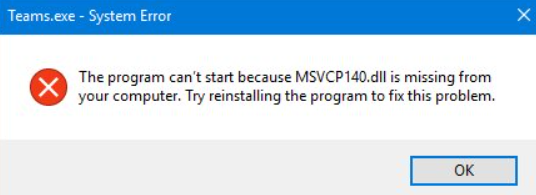
If you’ve encountered error messages mentioning msVCP140.dll while launching a game or application on your Windows PC, you’re not alone. This DLL (Dynamic Link Library) file is critical for running many programs built with Microsoft Visual C++ libraries. Errors related to msVCP140.dll—such as missing, corrupted, or failed to load messages—can cause software crashes, system instability, or prevent programs from starting altogether.
 In this comprehensive guide, we’ll explore what msVCP140.dll is, why issues occur, and most importantly, how to troubleshoot and fix these errors effectively. Whether you’re a casual Windows user, an IT technician, or a gamer eager to resolve these pesky interruptions, this article provides step-by-step solutions and preventive tips to keep your system stable and DLL-related errors at bay.
Understanding msVCP140.dll and Its Importance
The Role of DLL Files and msVCP140.dll
A DLL file (Dynamic Link Library) contains code, data, and resources that multiple programs can use simultaneously to perform shared functions. Instead of bundling all functionalities directly into individual applications, DLLs allow for more efficient and modular software design. The msVCP140.dll is specifically associated with the Microsoft Visual C++ Redistributables—collections of runtime components required by many Windows applications, especially those developed with Visual C++.
Why Issues Occur with msVCP140.dll
Problems with msVCP140.dll typically stem from one of the following scenarios:
- Missing DLL: The file has been deleted, moved, or never installed.
- Corrupted DLL: Malware, improper shutdowns, or disk errors have damaged the file.
- Failed to Load: Due to system conflicts, outdated drivers, or registry issues.
- Incompatible Versions: Installing multiple versions that conflict or a failed update.
Common Error Messages and Symptoms
Some typical msVCP140.dll error messages include:
- “The program can't start because msVCP140.dll is missing from your computer.”
- “There was a problem starting C:\Path\to\application.exe. The specified module could not be found.”
- “msVCP140.dll is missing or corrupted.”
- Application crashes or failure to launch. These errors often cause frustration, especially when they occur during gaming, video editing, or software development tasks.
Identifying the Cause of msVCP140.dll Errors
Diagnosing the Issue
Before fixing, it’s essential to understand whether the msVCP140.dll file is missing, corrupted, or failing to load. Here are steps to identify the root problem:
1. Check the Error Code
Error messages often include specific codes (e.g., 0x8007007E, 0x80070002) that point toward particular issues. Researching these codes can guide your troubleshooting.
2. Verify the DLL’s Presence
Navigate to C:\Windows\System32 (or SysWOW64 for 64-bit systems) and look for msVCP140.dll. If it’s missing, that’s a clear signal for a reinstall or repair.
3. Use Event Viewer and System Logs
Open Event Viewer (type eventvwr.msc in the Start menu) and check under Windows Logs > Application for error entries related to the DLL. These logs might reveal underlying system conflicts or other related errors.
Underlying System Issues
- Corrupted system files due to improper shutdowns, malware, or disk errors.
- Outdated system drivers conflicting with DLL operations.
- Incomplete or failed Visual C++ Redistributable installations.
- Malware infections replacing or deleting critical DLLs.
Manual Repair Techniques for msVCP140.dll Errors
When automatic fixes don’t resolve DLL problems, manual repairs can often restore functionality. Here are detailed steps:
Reinstall Microsoft Visual C++ Redistributables
Since msVCP140.dll is part of the Visual C++ Redistributable packages, reinstalling or repairing these packages frequently fixes missing or corrupted DLL issues.
Steps:
- Visit the official Microsoft website Download Visual C++ Redistributables.
- Download the latest supported versions (both x86 and x64, if applicable).
- Run the installers and choose Repair if available, or uninstall and reinstall.
- Restart your computer and test the application again.
Manual DLL Replacement and Registration
If you have a trusted source for msVCP140.dll, you can manually replace or re-register the DLL:
1. Download the DLL from a reputable source.
Caution: Download DLLs only from official or trusted sources to avoid malware.
2. Copy the DLL to the appropriate directory:
- System32 (for 32-bit DLLs):
C:\Windows\System32 - SysWOW64 (for 64-bit DLLs):
C:\Windows\SysWOW64
3. Register the DLL:
Open Command Prompt as Administrator and run:
regsvr32 msVCP140.dll
If registration fails, ensure the DLL is compatible with your system’s architecture.
Use System File Checker and DISM
Corrupted Windows system files can cause DLL loading issues. Use built-in repair tools:
sfc /scannow
- This scans and repairs system files automatically.
DISM /Online /Cleanup-Image /RestoreHealth
- Repairs Windows images and component store corruptions. Run these commands in Command Prompt with administrative privileges, then restart your PC.
Preventive Measures and Best Practices
Proactive maintenance can prevent many DLL errors related to msVCP140.dll. Here are essential tips:
Keep Windows and Drivers Up to Date
- Regularly check for Windows updates via Settings > Update & Security.
- Update device drivers from the manufacturer’s website or through Windows Device Manager.
Run System File Checker (SFC) Regularly
Set a schedule to run sfc /scannow periodically, especially after updates or system crashes.
Use Official and Trusted Sources for Duck and DLL Files
- Always download DLL files from official Microsoft sites or trusted repositories.
- Avoid third-party DLL download websites, which risk malware infections.
Install and Maintain Visual C++ Redistributables Properly
- Use the latest supported packages.
- Reinstall redistributables if applications begin throwing DLL-related errors.
Maintain Security
- Use reputable antivirus software.
- Regularly scan for malware, especially if DLL files become unexpectedly missing or altered.
Conclusion
Errors related to msVCP140.dll can be disruptive, but they’re often straightforward to resolve with targeted troubleshooting. The key steps include diagnosing whether the DLL is missing or corrupted, repairing or reinstalling Visual C++ Redistributables, manually replacing and registering DLL files if necessary, and maintaining system health through updates and security best practices. Proactive system maintenance and safe browsing habits can significantly reduce the likelihood of encountering future DLL conflicts. However, if problems persist despite these efforts, don’t hesitate to seek professional technical assistance to avoid further system issues. By following this guide, you’ll be better equipped to keep your Windows environment stable, your applications running smoothly, and your gaming or work experience uninterrupted.
Remember: Always back up important data before making significant system changes, and use trusted sources for downloading files. Staying diligent can save you time and prevent recurring DLL errors related to msVCP140.dll.